
Team Registration Steps
Once team registration has been enabled, you will either receive an email with a link to the registration form or page, or you will see this button on our website (this button here is not active, must be logged in under your account)
If you are registering a sibling for the same season, and have already completed a registration form for that season for another child, please do NOT complete the standard registration form. Please instead reach out to [email protected] for additional registration instructions.
Click the link or this button to start the registration process.
Registration Progress Bar
During the registration process, this progress bar will show you what you have completed and what is next. You can go back to a previous section at any time to make changes, but to move forward click the Next Step button at the bottom of the section you just completed. Your registration bar may not include all of these headers.

If your registration form is still open after 30 minutes of inactivity, you will be forced back to the first page of the registration, and any limited quantity items you signed up for will be removed. For example, if there are registration limits, then all athletes affected by those registration limits should be removed. However, if there are no registration limits, the athlete registration will NOT be removed, but other limited items (like merchandise) will be removed.
Step 1: Personal Information
Enter or verify the contact information, email and volunteer preferences for each parent/guardian on the registration (returning members will have information pre-loaded into the registration form when logged in based on the last known registration form).
Enter or verify the information for each swimmer you are registering for the team To add or delete a line, click the +Add or Remove buttons. Next, add your home address and phone number.
» Note: Contact your team administrator if you need updates to existing contact information that is read-only, or log out if you are not the person displayed on the screen.
****************************************************************************************
➧ Step 2: Questions & Acknowledgements (Waivers)
Read and check to acknowledge any liability waivers, questions, affiliations, or agreements your team requires. Enter your initials to electronically sign if required.
Click the Next Step button to save your changes and move on to the next section.
➞ Did you receive this notification? - "this email address has already been taken"
You either have an account with the same email on this team or another team using SwimTopia. If it's possible you have created an account on this team before, you should sign in instead of creating a new account, or use a different email. (Use the "Forgot your Password?" option if needed). If you know you do not have an account, make sure you are using the same name format used on the other team site where you have used the same email. Contact your team admins if you need assistance.
Step 3: Volunteer Sign-Up
➞ Exempt Volunteers
If you have been pre-assigned to a role that exempts you from fulfilling the minimum commitment for the season, you will see this message and your exempt role here instead. You can still volunteer for shifts or role preferences by clicking the "Show options" link.

➞ Job/Role Sign-up
You can choose available season roles and job shifts here. Any required number of roles and/or shifts per parent must be fulfilled before your registration can be submitted.
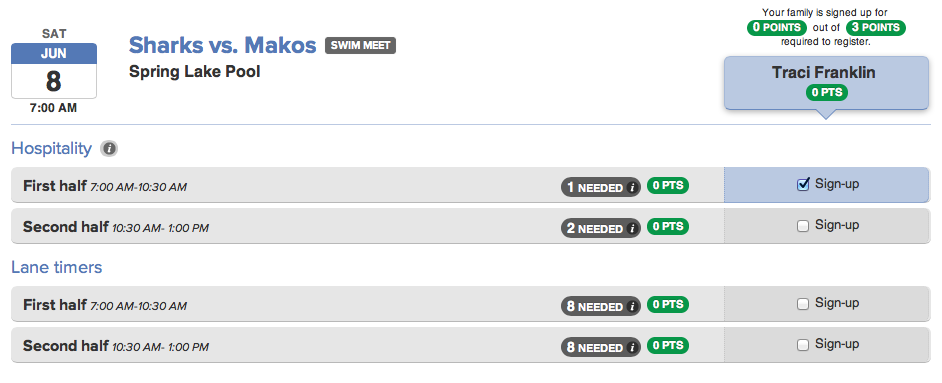
➞ Volunteer Role Preferences
You can enter your preferences for each parent registering for the season here.
» Note: These preferences are for planning purposes only, you are not signing up for actual meet jobs right now.
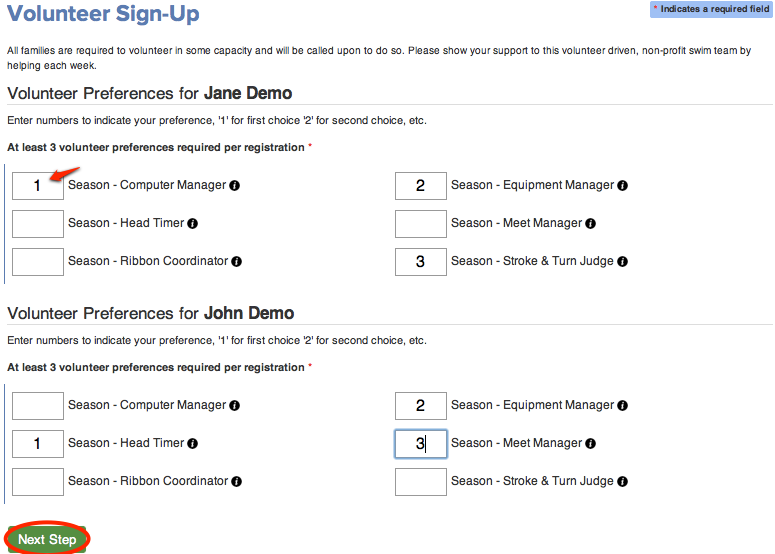
Click the Next Step button to move on to the next section.
****************************************************************************************
➧ Step 4: Merchandise
Team Shirts are included with registration, and you will be given the option to chose size here. This is mandatory to continue registration.
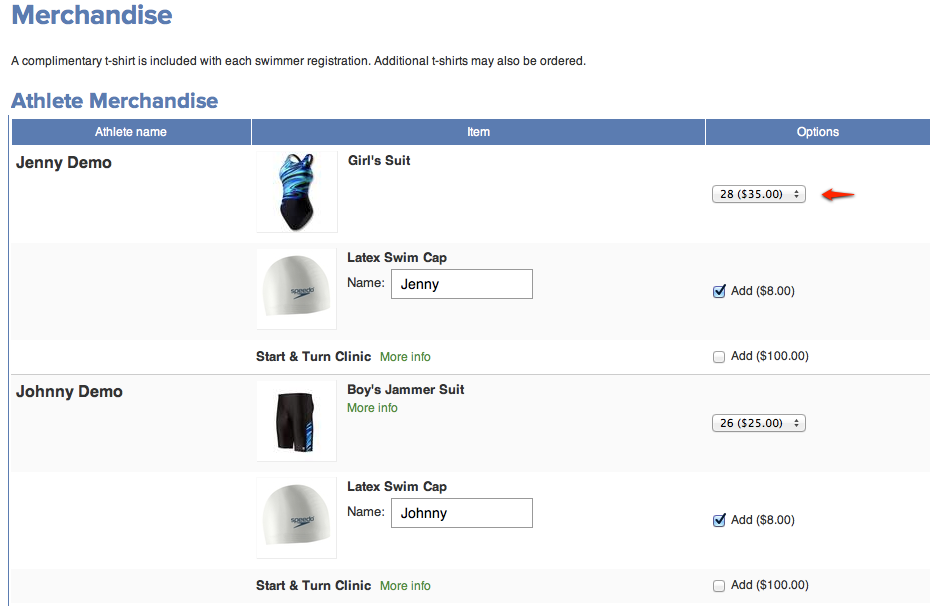
Items in Additional Merchandise can be ordered in any quantity.
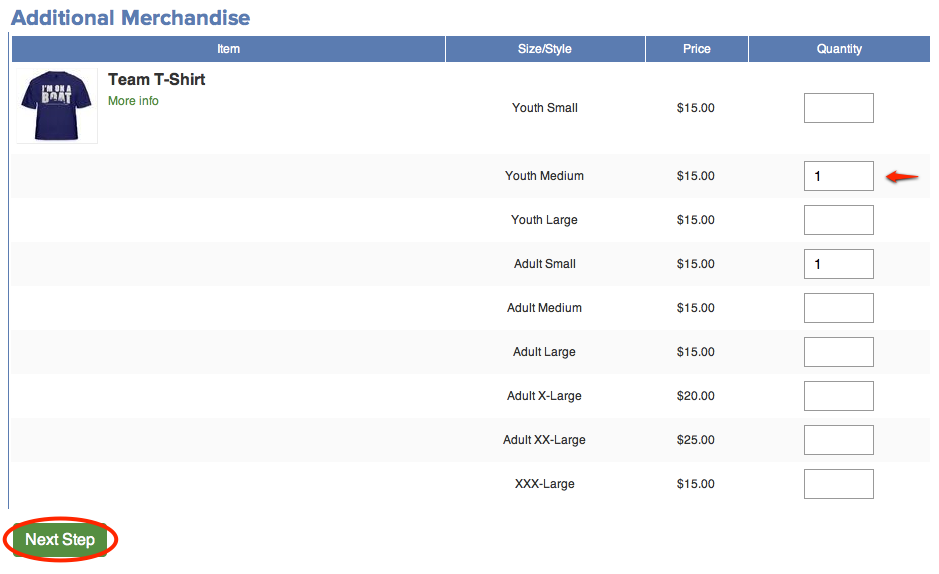
Click the Next Step button to save your changes and move on to the next section.
****************************************************************************************
➧ Step 5: Order Summary and Payment
Review your registration fees and merchandise orders on your Order Summary.
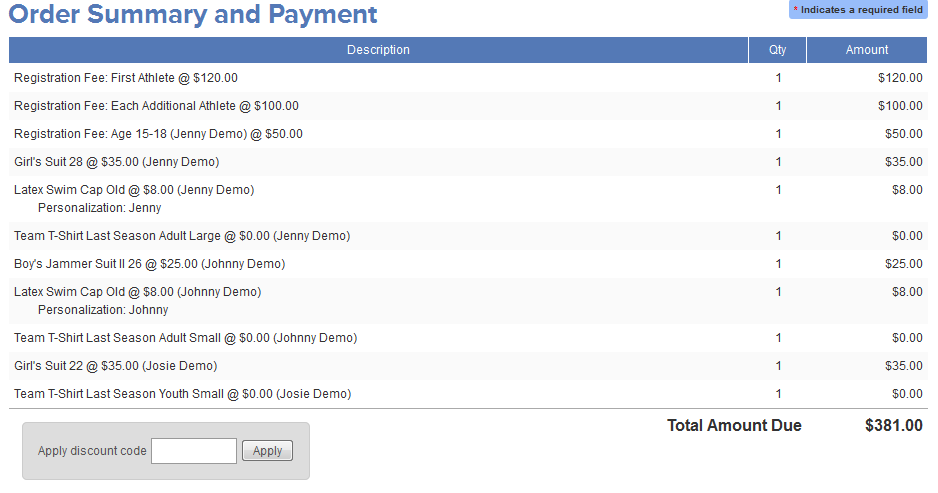
Currently we are only accepting credit card for payment, but please reach out to a team rep if you need an alternative payment method:
➧ Pay with Credit Card
To pay with a Credit Card, click "credit card," and Checkout where you can verify your payment total and securely enter your credit card information.
» Note: Do not stop at this point or you will not be fully registered.
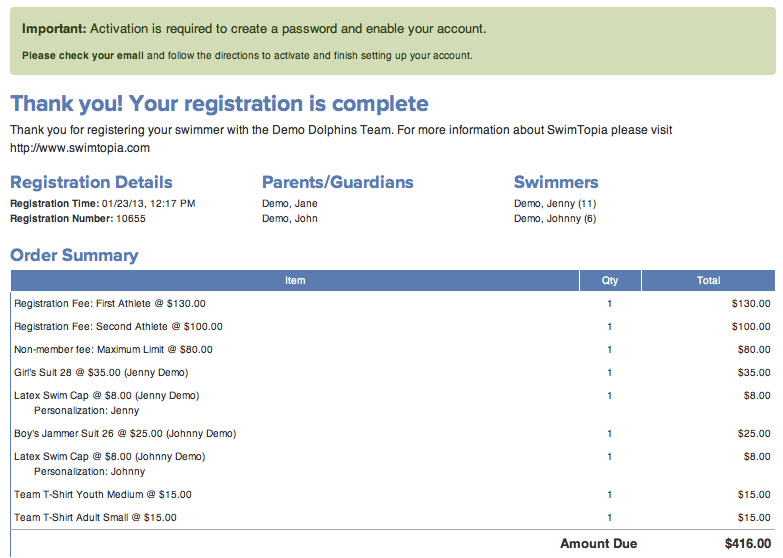
Once you see the registration confirmation screen you will know you are fully registered.
After Registration
You are now registered with the team, and have an account the team website, but will need to activate this account by setting up a password. Check your email for a copy of this registration confirmation and a separate email with activation instructions. If you do not see these emails fairly quickly, check your spam or trash folders. Contact us if you are unable to locate these emails.


